

 by Nevtechzone Team
 0 comments
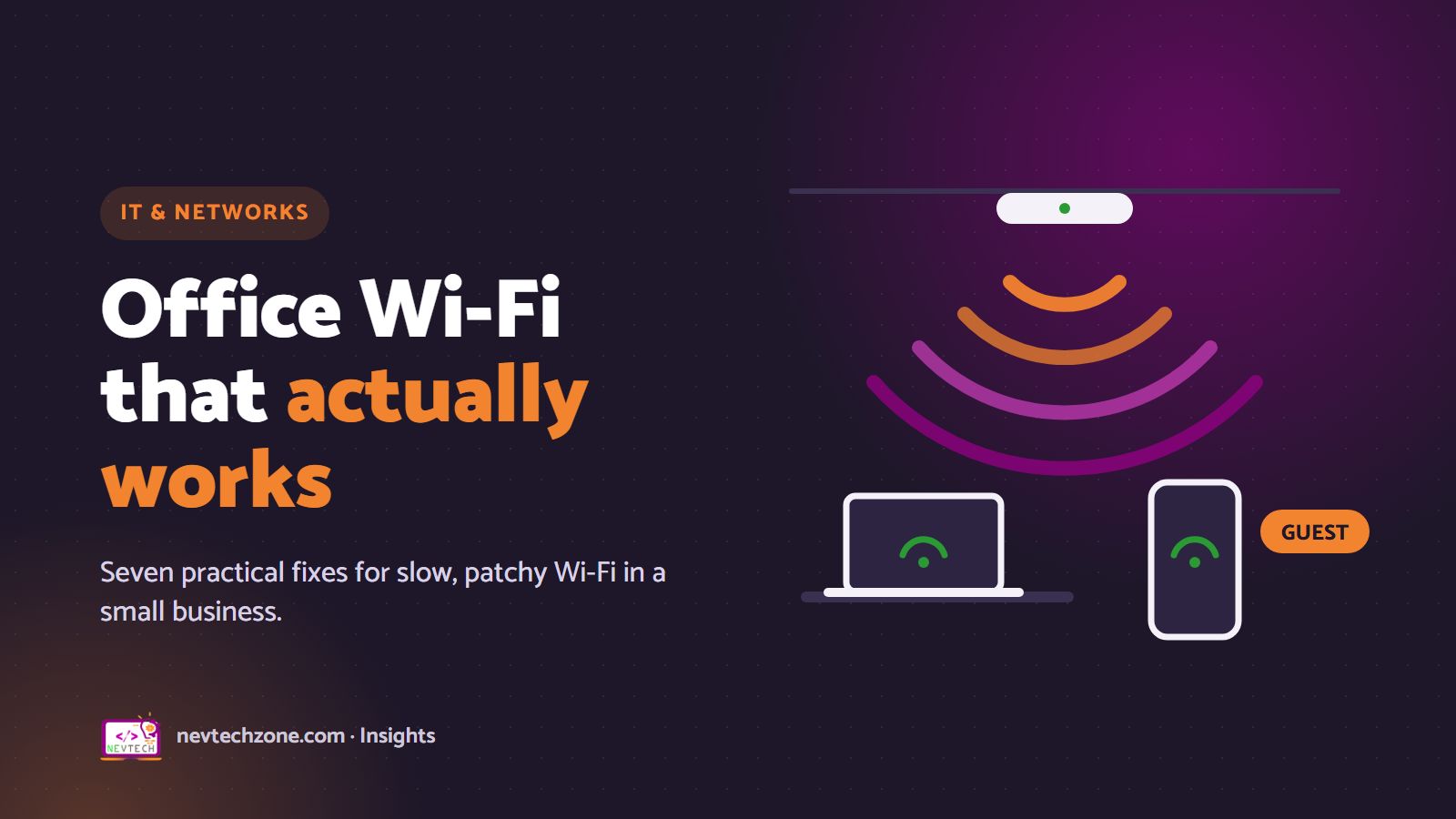
"The internet is slow" is one of the most common complaints in any office. Very often, though, the internet connection itself is fine. The problem is the Wi-Fi inside the building: one router in a cupboard, trying to cover three rooms, two floors and thirty devices.
Before you upgrade your internet package, it is worth checking the network you already have. Here is what we look at when a business asks us to fix its Wi-Fi.
1. Test the connection, not just the Wi-Fi
Plug a laptop directly into the router with a network cable and run a speed test. Then run the same test over Wi-Fi, next to the router and in the far corner of the office.
- Slow even on the cable? The problem is the internet connection — talk to your provider, or consider a second line.
- Fast on the cable, slow on Wi-Fi? The problem is inside the building, and the fixes below will help.
This one test saves a lot of money spent on bigger internet packages that don't solve anything.
2. Get the router out of the cupboard
Wi-Fi signals weaken with distance and with every wall, floor, metal cabinet and water tank they pass through. A router on the floor behind the reception desk, or inside a server cupboard, wastes much of its range.
Place access points high up, in the open, and central to the area they serve. Even moving a router a few metres can make a noticeable difference.
3. One router is rarely enough
A typical home-style router is designed for a flat, not an office. Once you have several rooms, more than one floor, or more than a couple of dozen devices, you need more than one access point.
There are two common approaches:
- Mesh systems — access points that connect to each other wirelessly. Quick to install, good for homes and small offices where running cables is difficult.
- Wired access points — each access point connected back to the network by a cable. More work to install, but faster and more reliable, especially for busy offices.
For most businesses, wired access points are worth it. Each one gets its full speed, and one weak link doesn't slow the rest.
4. Use both 2.4 GHz and 5 GHz properly
Modern Wi-Fi uses two bands:
- 2.4 GHz reaches further and through more walls, but is slower and more crowded — every neighbour's router uses it too.
- 5 GHz is much faster and less crowded, but has a shorter range.
A well-set-up network lets laptops and phones use 5 GHz when they're close enough, and fall back to 2.4 GHz further away. Placing more access points (see above) means more devices can stay on the faster band.
5. Separate staff and guest Wi-Fi
Customers and visitors should never be on the same network as your accounts computer, your printer or your CCTV recorder.
Set up a separate guest network that only gives internet access, with its own password that you can change regularly. Better still, limit how much bandwidth guests can use so a visitor's phone backup doesn't slow down your till.
If you offer Wi-Fi to customers — in a hotel, café, school, estate or clinic — a hotspot system lets you control access properly: vouchers, time or data limits, and even payment by M-Pesa.
6. Know who is using your bandwidth
In many offices a handful of devices use most of the bandwidth: automatic cloud backups, software updates, video streaming, a forgotten laptop downloading all day.
A business-grade router (MikroTik is a popular, cost-effective choice in Kenya) lets you see which devices use the most data, and set limits or priorities — for example, giving your point-of-sale system and video calls priority over everything else.
7. Change the defaults and keep things updated
A few basics that protect your business:
- Change the router's admin password from the factory default.
- Use WPA2 or WPA3 security on every network, never an open network for staff.
- Change the Wi-Fi password when staff leave.
- Keep the router and access points' firmware up to date.
- Write down what is installed, where, and the passwords — and keep that document safe.
When to call in help
You can try the first few fixes yourself. It's worth getting professional help when:
- you're moving into a new office (cabling is far cheaper before the ceilings and walls are finished),
- the office has several rooms or floors,
- you need guest or customer Wi-Fi with access control or billing, or
- outages are costing you sales or staff time.
A good installer will start with a site survey — walking the building, measuring signal and planning access point positions — and give you a quote before any work starts.
How we can help
We design and install office networks, Wi-Fi and hotspot systems across Nairobi and beyond: structured cabling, MikroTik routers, wired access points, guest networks, and hotspot billing with M-Pesa. Every installation is documented, and we support it afterwards.
Request a site survey and quote, or chat with us about your current setup.
Latest Posts

Let’s talk about your business
Book a free 30-minute consultation — we’ll look at your technology and marketing and tell you honestly what will help.
0 Comments